⚖ CASELINE — First-Time User Guide
Chamber Management System | v1.0 | June 2026
🚀 5-Minute Quickstart
- Import cases → IMPORT XLS → Select Excel → Done
- Check today → Left panel shows hearings by date
- Open a case → Click party name (blue link) → Case file opens
Chapter 1: Console Overview
The Caseline console is divided into 4 functional zones.
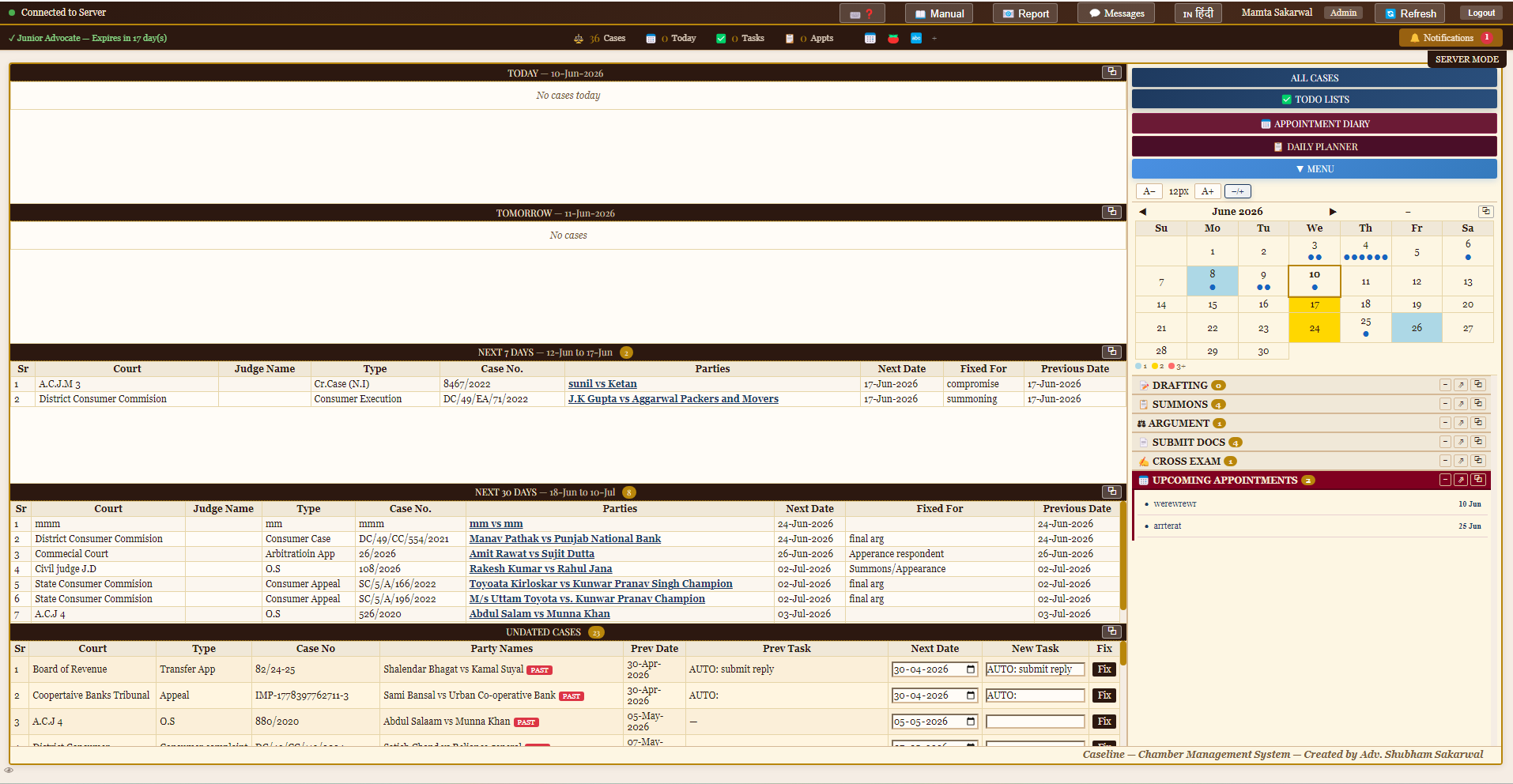
Full console showing all zones: top toolbar, left case panel, right navigation, and footer
Zone 1 — Top Toolbar

Top toolbar: connection status, Manual, Report, Messages, Hindi, user name, Admin, Refresh, Logout, Notifications
| Button | Purpose |
|---|---|
| 🟢 Connected | Server connection status |
| 📖 Manual | Opens this user guide |
| 📋 Report | Submit bugs/suggestions |
| 💬 Messages | Chamber messaging |
| हिंदी | Language toggle |
| 🔄 Refresh | Reload all data |
| 🔔 Notifications | Alerts & reminders |
Zone 2 — Right Panel
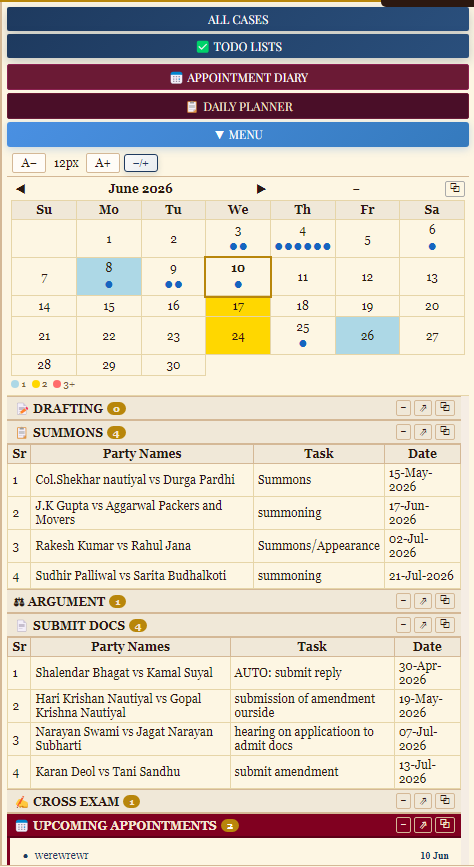
Right panel: navigation buttons, calendar heat map, and filter lists (Drafting, Summons, Argument, etc.)
Navigation Buttons: ALL CASES | ✅ TODO LISTS | 📅 APPOINTMENT DIARY | 📋 DAILY PLANNER | ▼ MENU
Calendar Heat Map: 🔵 Blue = 1-30 cases | 🟡 Yellow = 31-60 | 🔴 Orange = 61+. Click any date to jump.
Filter Lists: Cases grouped by task type — DRAFTING, SUMMONS, ARGUMENT, SUBMIT DOCS, CROSS EXAM, UPCOMING APPOINTMENTS.
Zone 3 — Left Panel (Main Content)
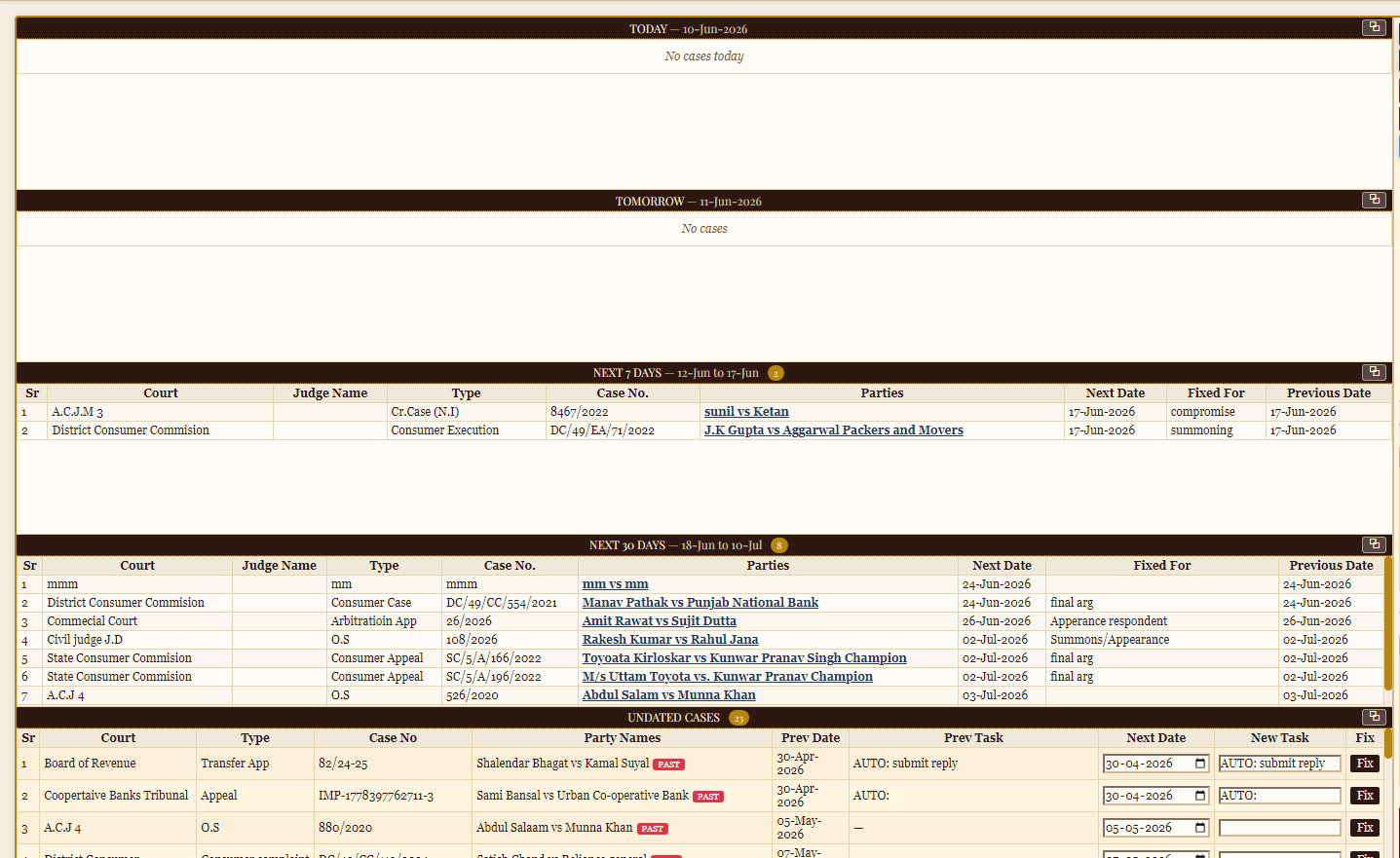
Cases displayed in time sections: Today, Tomorrow, Next 7 Days, Next 30 Days, Undated Cases
Chapter 2: Adding Data
3 ways to add cases:
Method 1: New Entry
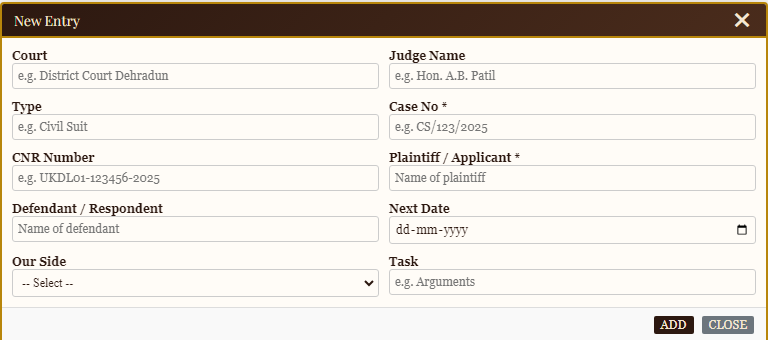
New Entry form: Court, Judge, Type, Case No.*, CNR, Plaintiff*, Defendant, Next Date, Our Side, Task
Steps: Click NEW ENTRY → Fill form → Click ADD. Required: Case No. and Plaintiff.
Method 2: Import Excel

EXPORT XLS and IMPORT XLS buttons in the right panel menu
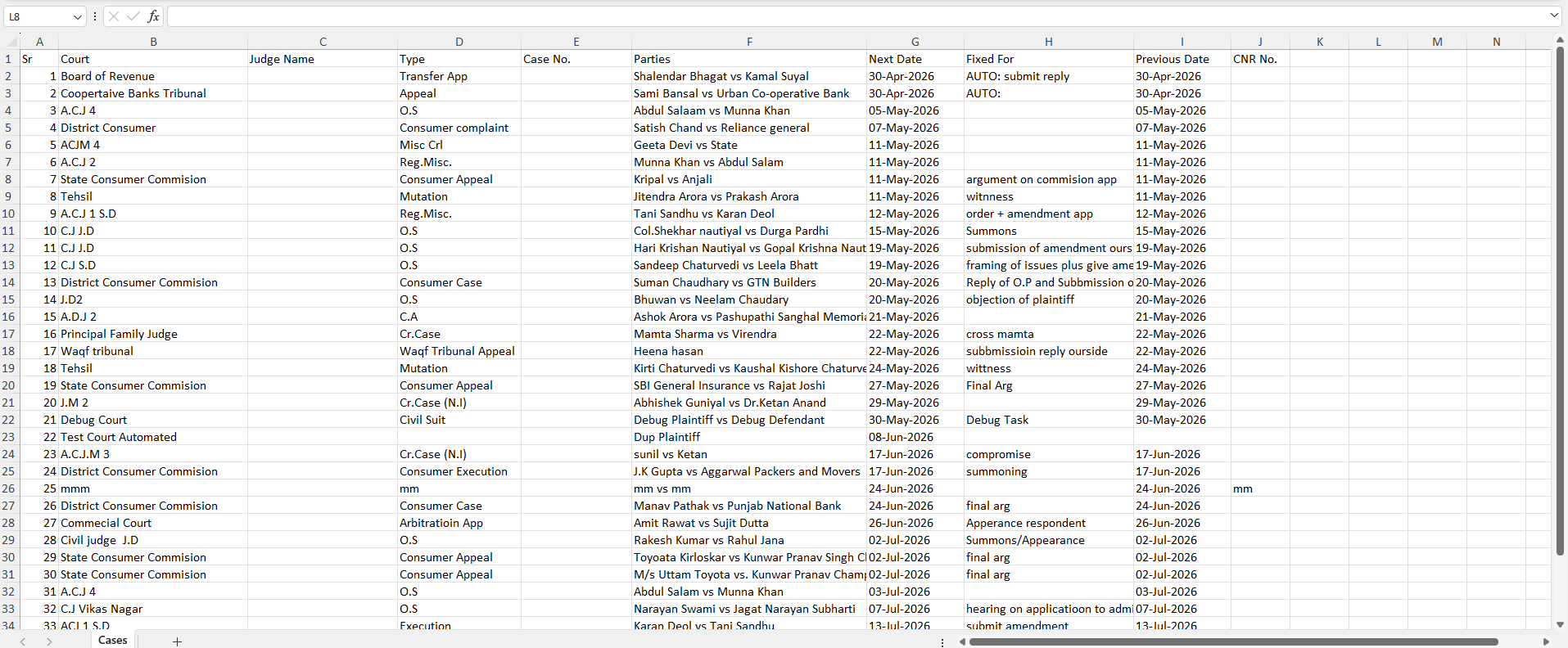
Excel format: Sr, Court, Judge, Type, Case No., Parties, Next Date, Fixed For, Previous Date, CNR No.
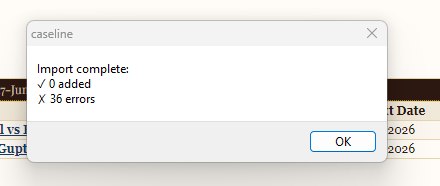
Import result dialog showing added cases and errors
Method 3: Export
Click EXPORT XLS → File saves as Caseline_Cases.xlsx → Edit in Excel → Re-import if needed.
Chapter 3: All Cases Window
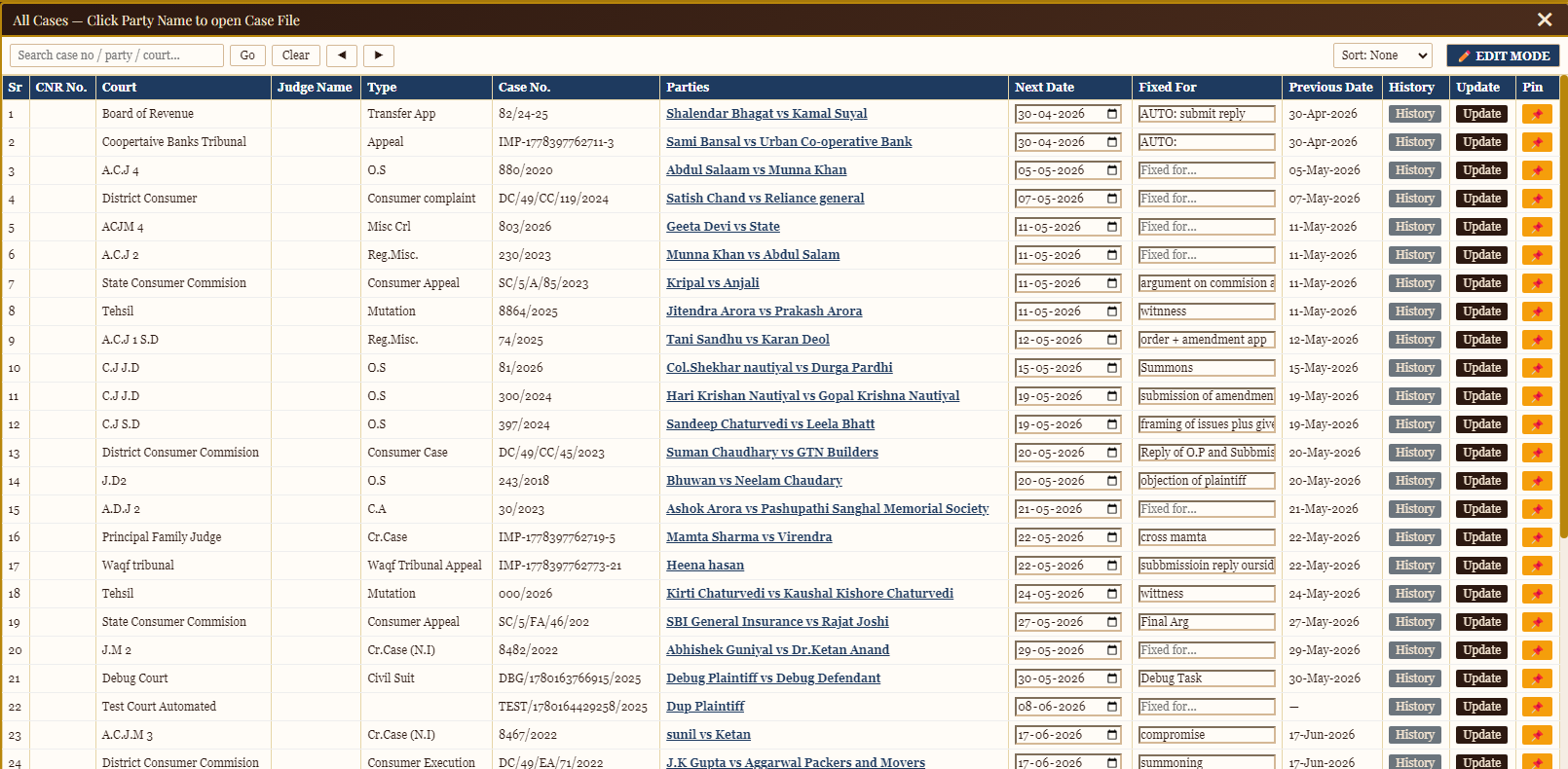
All Cases window: search, sort, navigate, edit mode, history, update, and pin features
| Feature | How |
|---|---|
| Search | Type in search box — matches case no., parties, court |
| Sort | Click Sort dropdown |
| Edit Mode | Click 🖊 EDIT MODE for inline editing |
| History | Click "History" on any row |
| Update | Click "Update" to quick-change next date/task |
| Pin | Pin important cases to top |
Chapter 4: Case Overlay
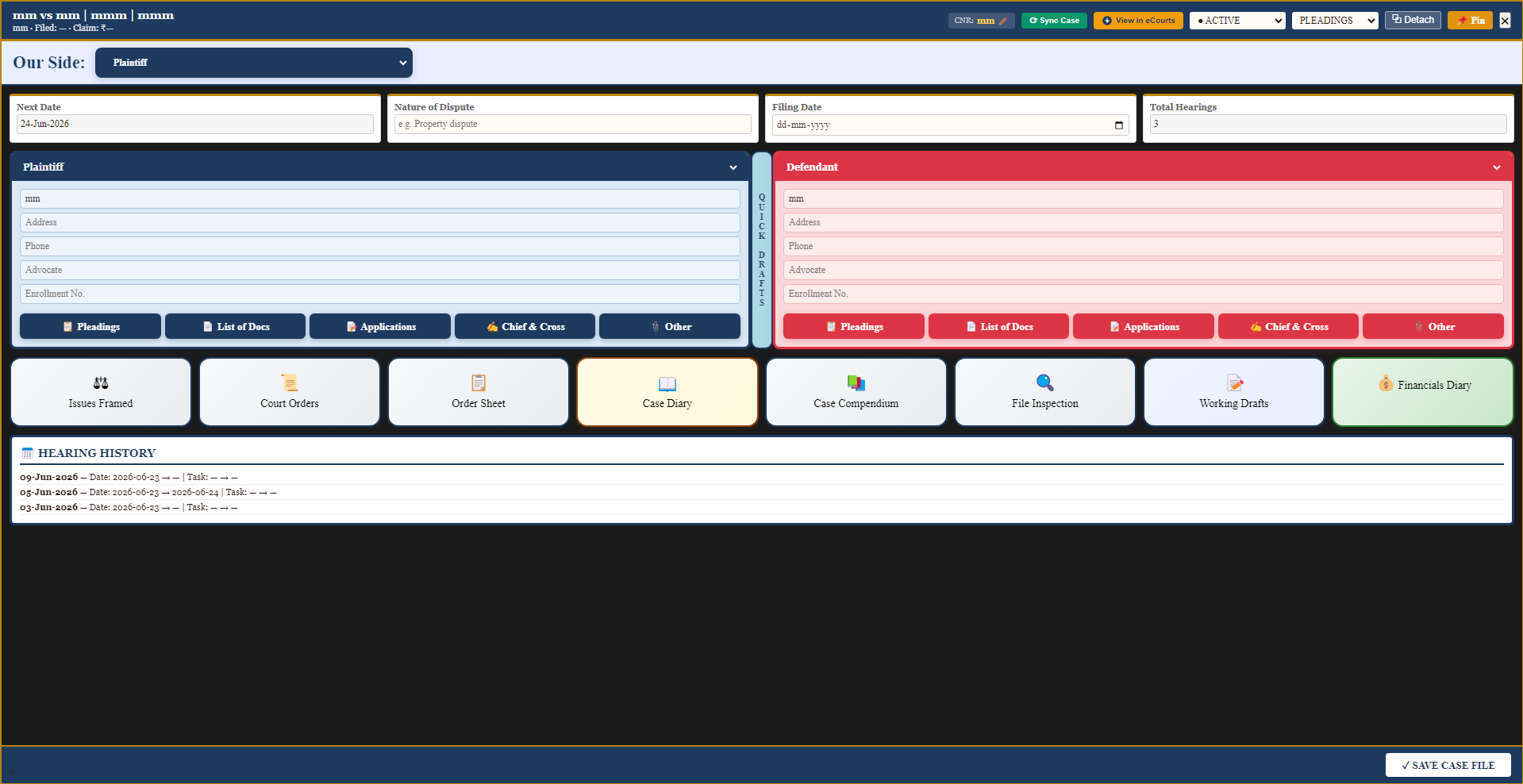
Case Overlay: complete case file with party details, documents, module buttons, and hearing history
Top Bar

Top bar: CNR (editable), ⟳ Sync Case, View in eCourts, Status dropdown, Stage, Detach, Pin, Close
Case Details Row

Next Date | Nature of Dispute | Filing Date | Total Hearings
Document Tabs (per party)

Pleadings | List of Docs | Applications | Chief & Cross | Other — available for both Plaintiff and Defendant
Quick Drafts

Side-tab for quick working notes on the current case
Module Buttons

Issues Framed | Court Orders | Order Sheet | Case Diary | Case Compendium | File Inspection | Working Drafts | Financials Diary
Chapter 5: Todo Lists (Work Dashboard)
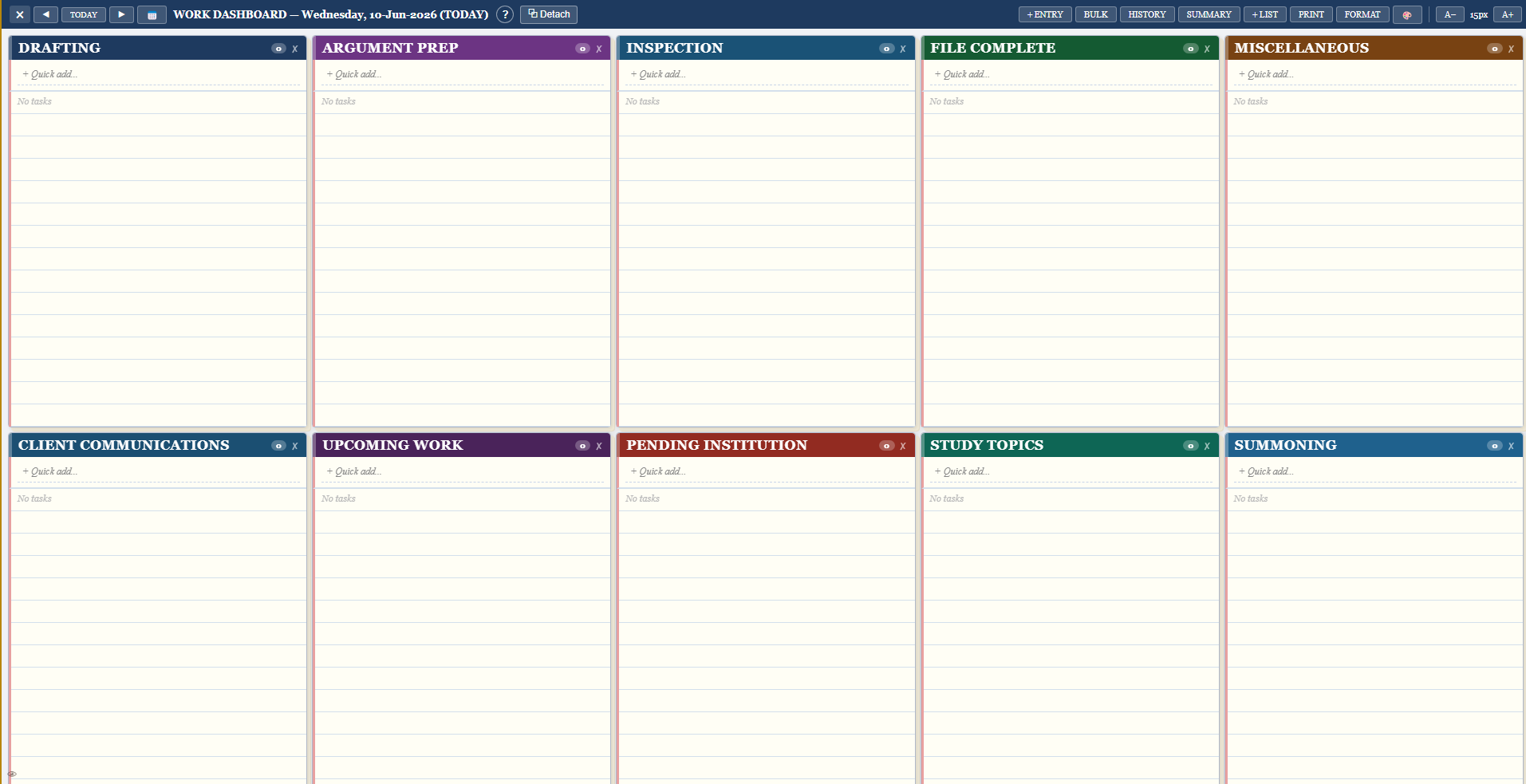
Work Dashboard: 10 categorized task lists in a grid layout
Toolbar

Close | ◀ TODAY ▶ | WORK DASHBOARD | ? | Detach | +ENTRY | BULK | HISTORY | SUMMARY | +LIST | PRINT | FORMAT | 🎨 | A-/A+
Task Controls
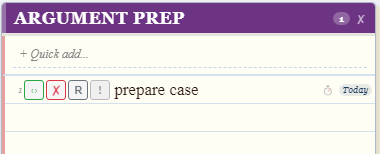
Each task: ☐ Complete (green) | ✖ Delete (red) | R Recurring | ! Priority | ⏱ Timer | Date
Add New Task
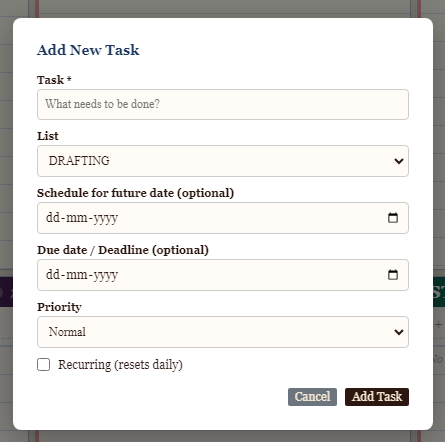
Form: Task name, List, Schedule date, Due date, Priority, Recurring checkbox
Bulk Add
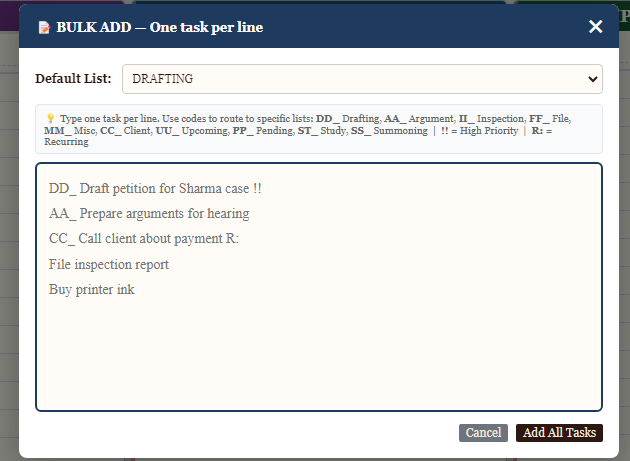
One task per line. Prefix codes: DD_=Drafting, AA_=Argument, CC_=Client, etc. !! = High Priority, R: = Recurring
Chapter 6: Appointments Diary
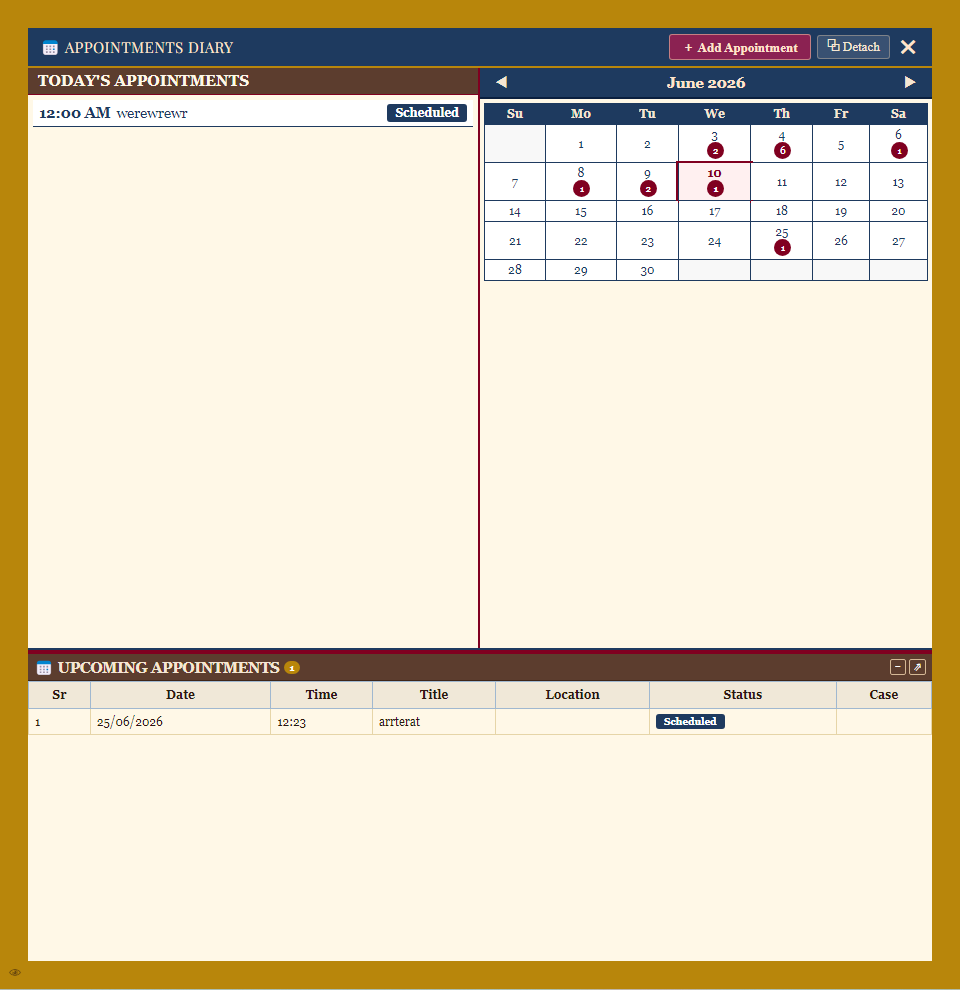
Left: today's appointments | Right: calendar heat map | Bottom: upcoming appointments table
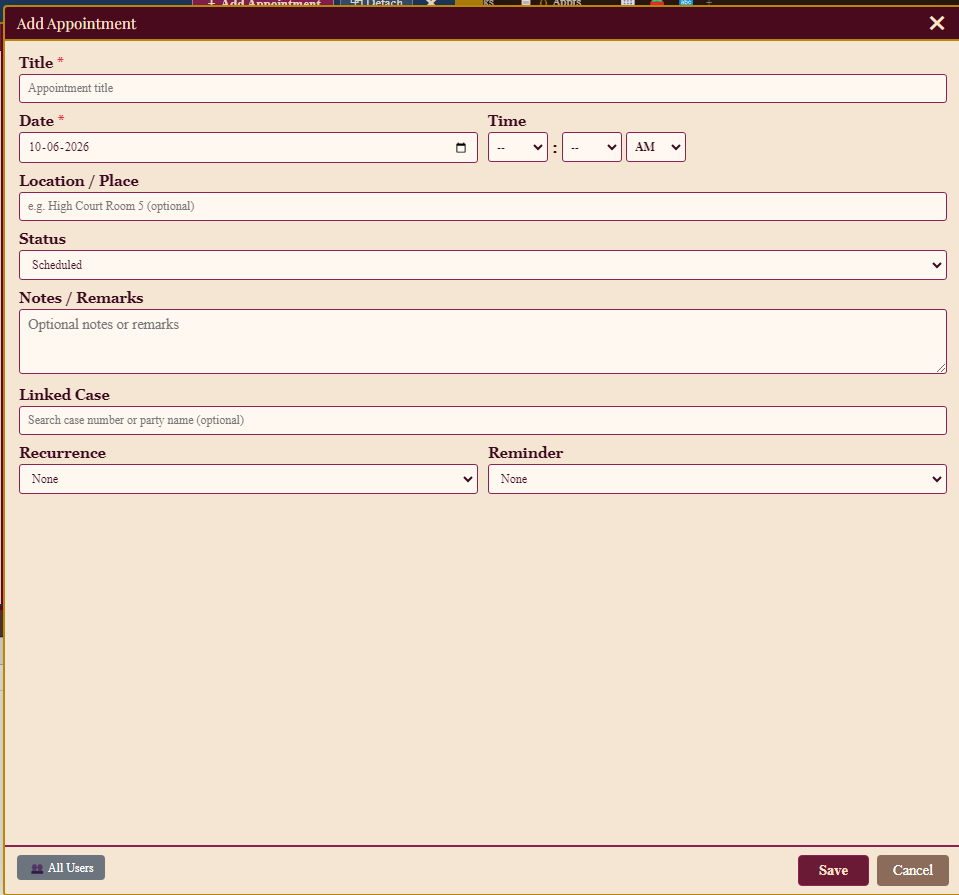
Form: Title*, Date*, Time, Location, Status, Notes, Linked Case, Recurrence, Reminder
Chapter 7: Daily Planner
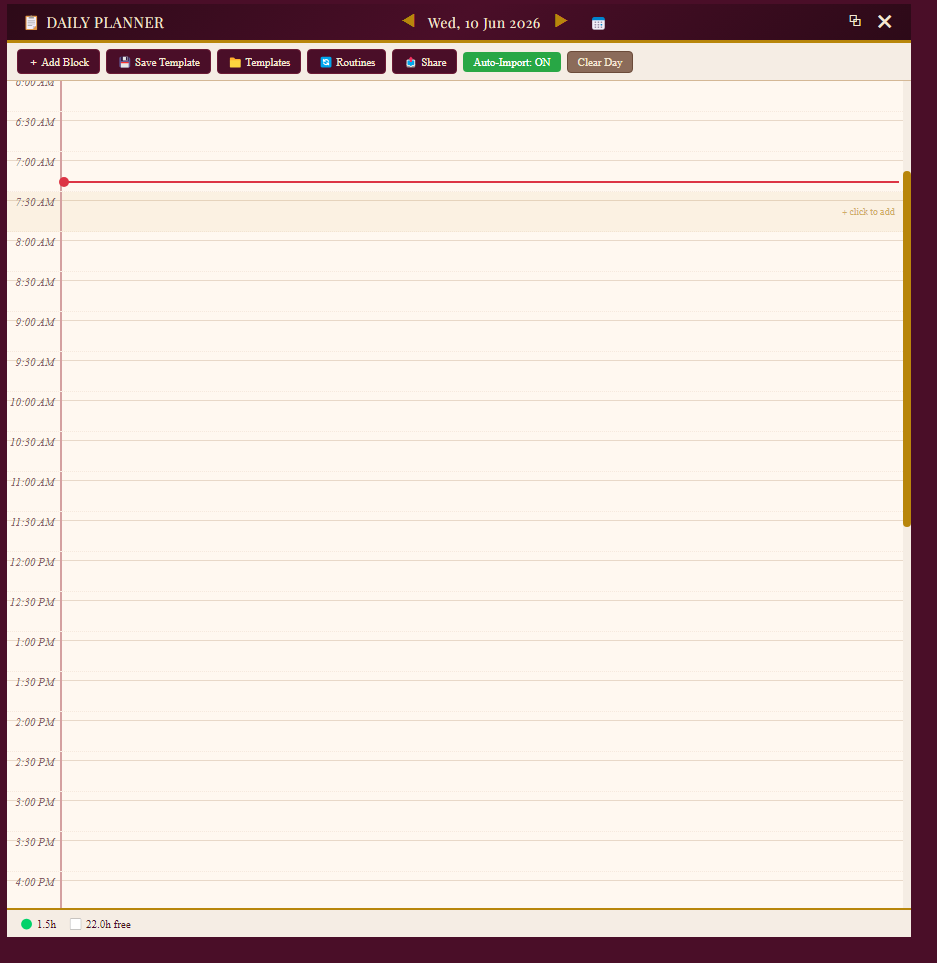
Hour-by-hour time grid (3:30 AM–3:00 AM). Red NOW line shows current time. Footer shows hours per category.

+ Add Block | Save Template | Templates | Routines | Share | Auto-Import ON/OFF | Clear Day
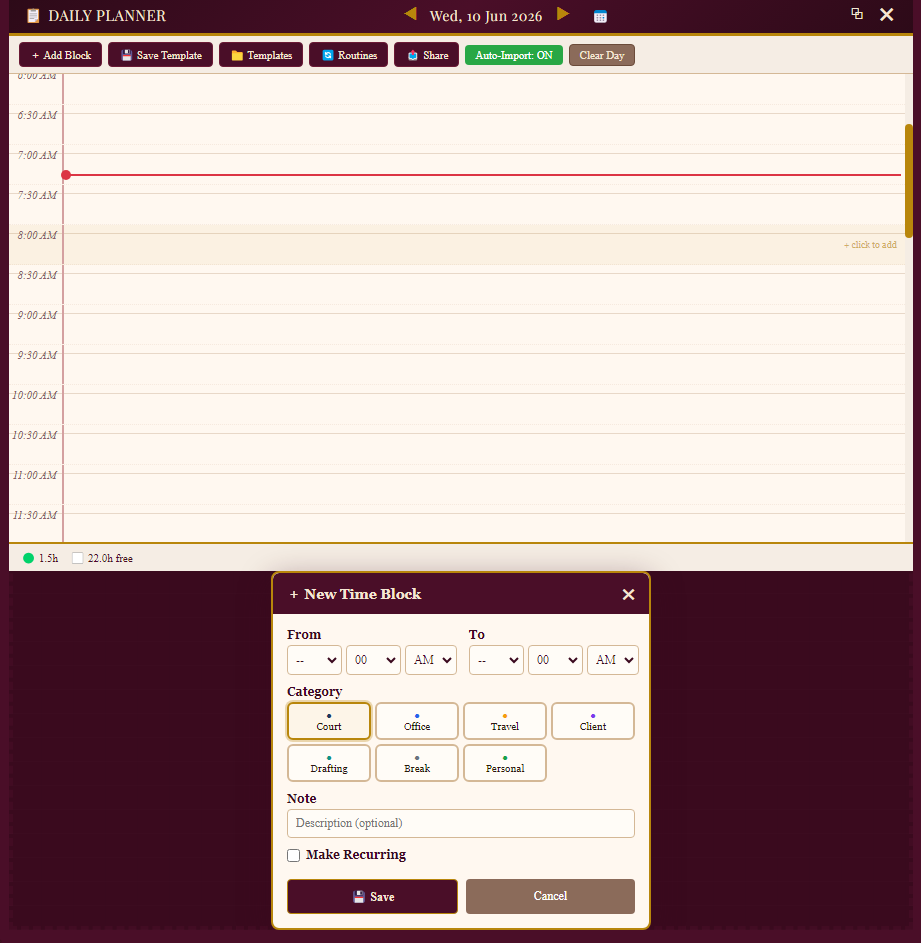
New Time Block: From/To time, Category (Court/Office/Travel/Client/Drafting/Break/Personal), Note, Make Recurring
Chapter 8: User Management
Admin only. Click 👥 USER MANAGEMENT to manage team members.
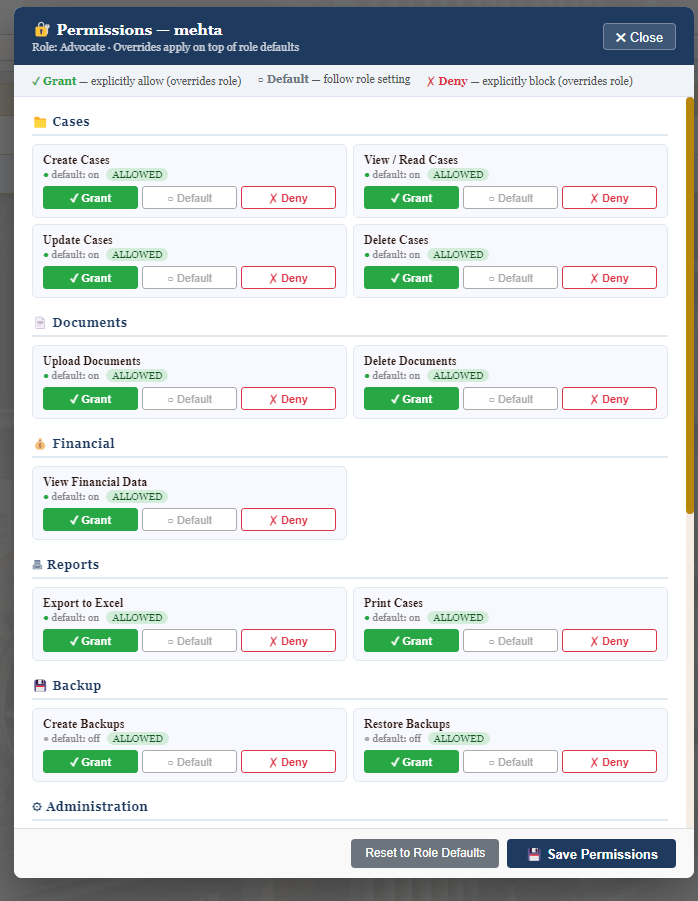
Permission categories: Cases, Documents, Financial, Reports, Backup, Administration. Levels: Grant / Default / Deny
| Role | Default Access |
|---|---|
| Admin | Full system access |
| Advocate | Cases, documents, financial view, export/print |
| Clerk | Cases (view/create), limited features |
Chapter 9: Accounting (Chamber Ledger)
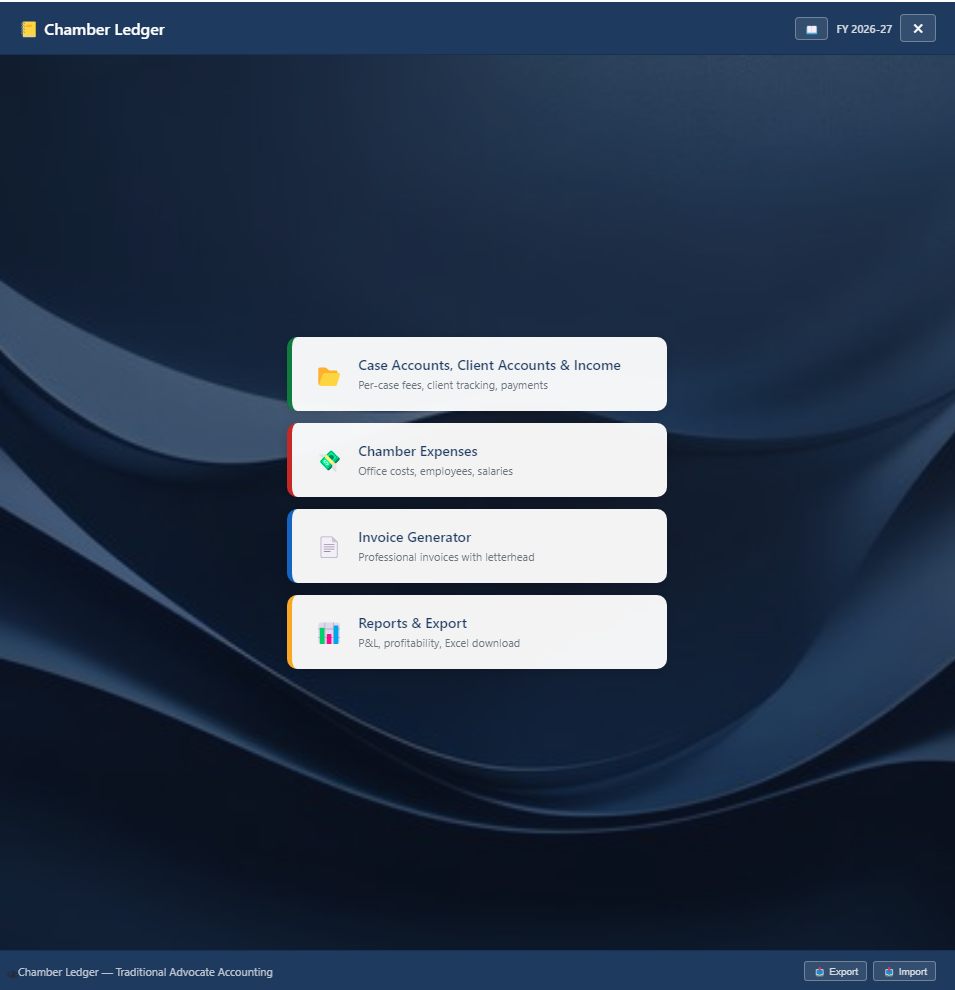
4 categories: Case Accounts & Income | Chamber Expenses | Invoice Generator | Reports & Export
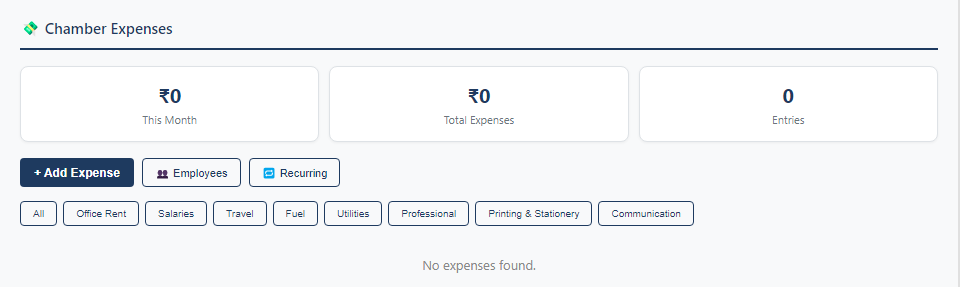
Sub-categories: Case Accounts, Client Accounts, Pending Payments, Client Advances, Other Professional Incomes
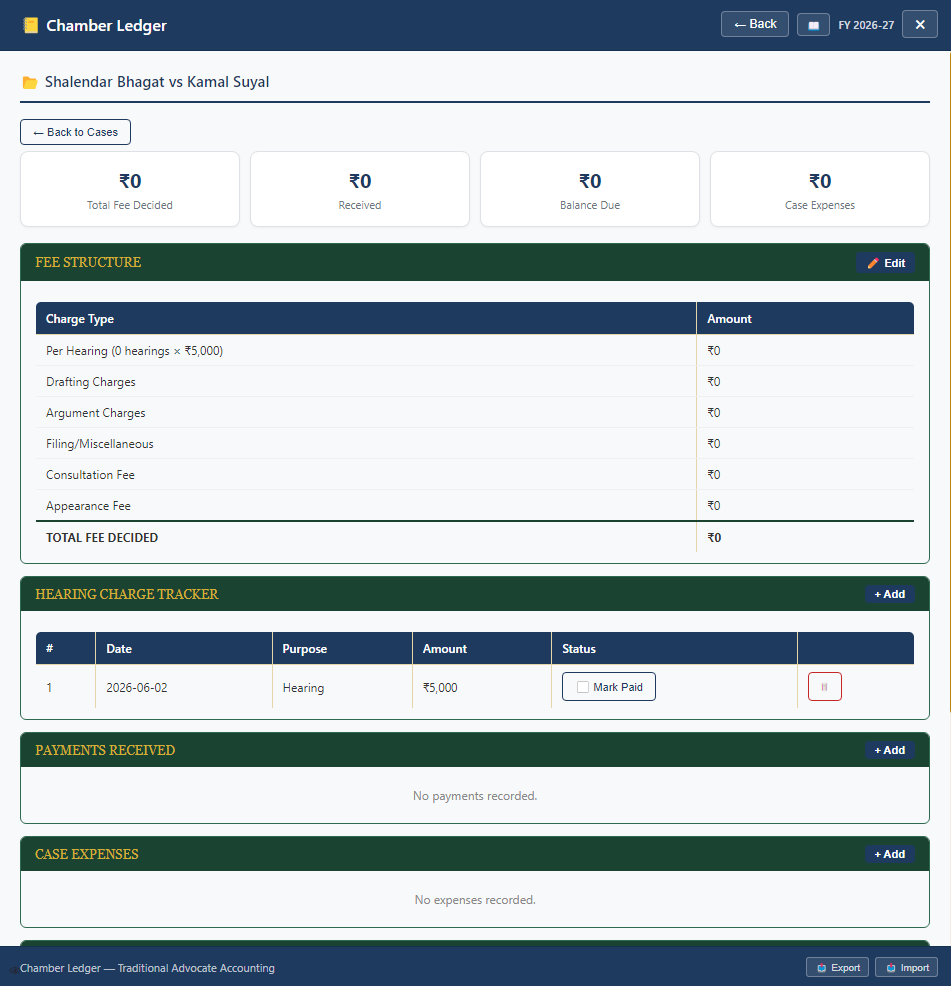
Per-case: Fee Structure, Hearing Charge Tracker, Payments Received, Case Expenses
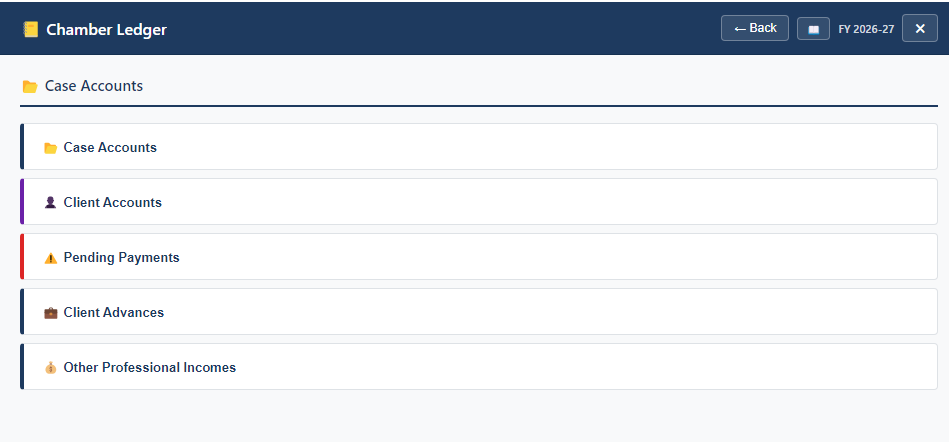
Chamber Expenses: Office Rent, Salaries, Travel, Fuel, Utilities, Professional, Printing, Communication
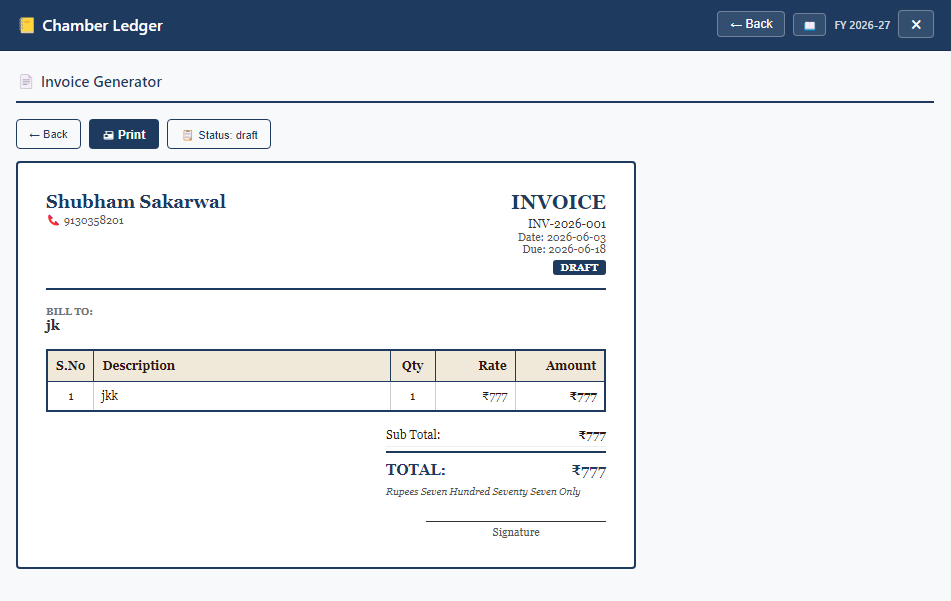
Invoice Generator: professional invoices with letterhead, line items, auto-totals, amount in words
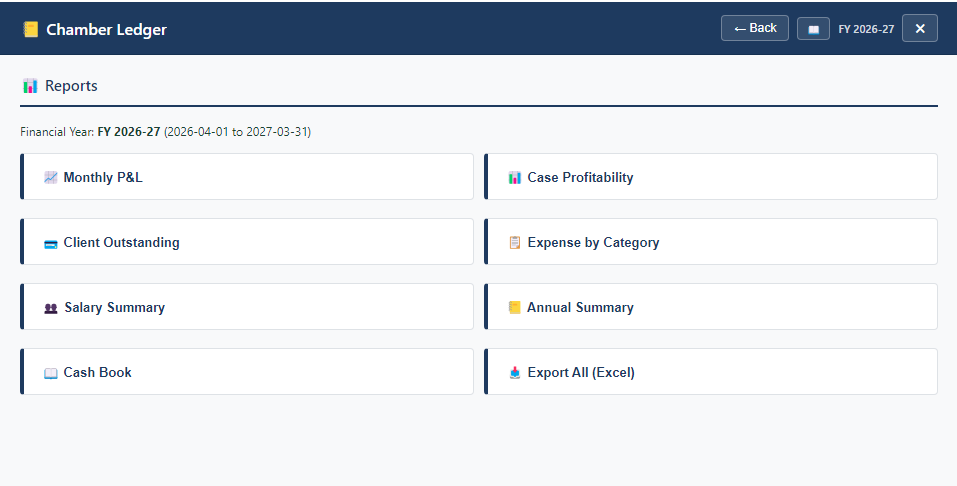
Reports: Monthly P&L, Case Profitability, Client Outstanding, Expense by Category, Salary Summary, Annual Summary, Cash Book, Export All
Chapter 10: Work Space
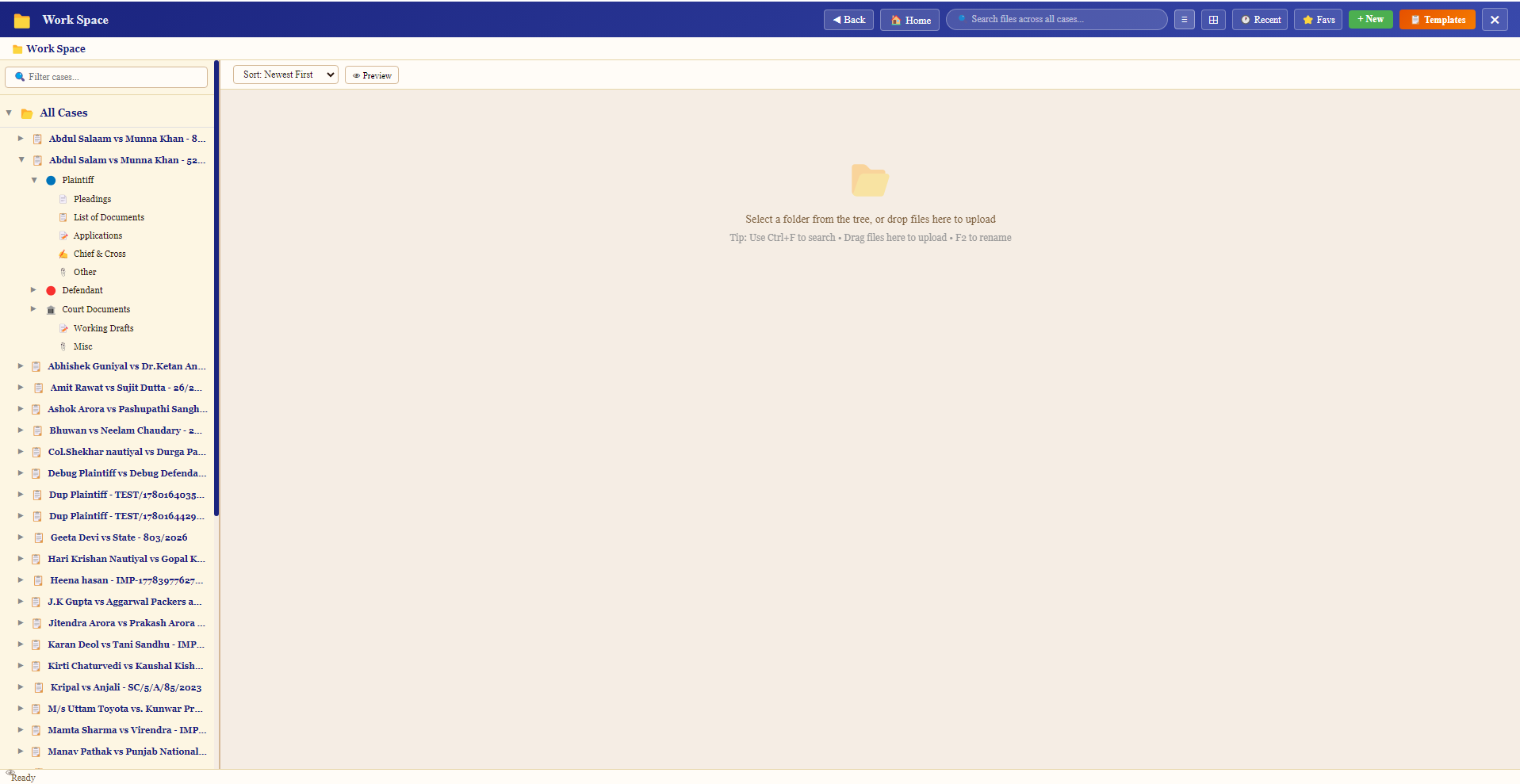
Left: case folder tree (per case: Plaintiff→Pleadings/Docs/Applications, Defendant, Court Documents, Working Drafts). Right: file upload zone.

Toolbar: Back | Home | Search | Grid/List | Recent | Fav | +New | Templates
Chapter 11: Study Material

STUDY and FORMS buttons in the right panel menu
Categories: Bare Acts (legislation) | Case Compendium (case law by topic) | Research Papers | Misc Material
Case Compendium sub-categories: Civil Laws, Criminal Laws, Evidence, Constitutional Law, Others, + Add Category
Chapter 12: Forms Library
Court forms organized by type: Civil Court | Criminal Court | Executive Court | Nagar Nigam | Tehsil | High Court | Supreme Court | + Add Category
Quick Access: 10 slots for frequently used forms — click empty slot to assign a PDF for instant access.
Chapter 13: Advo Tools
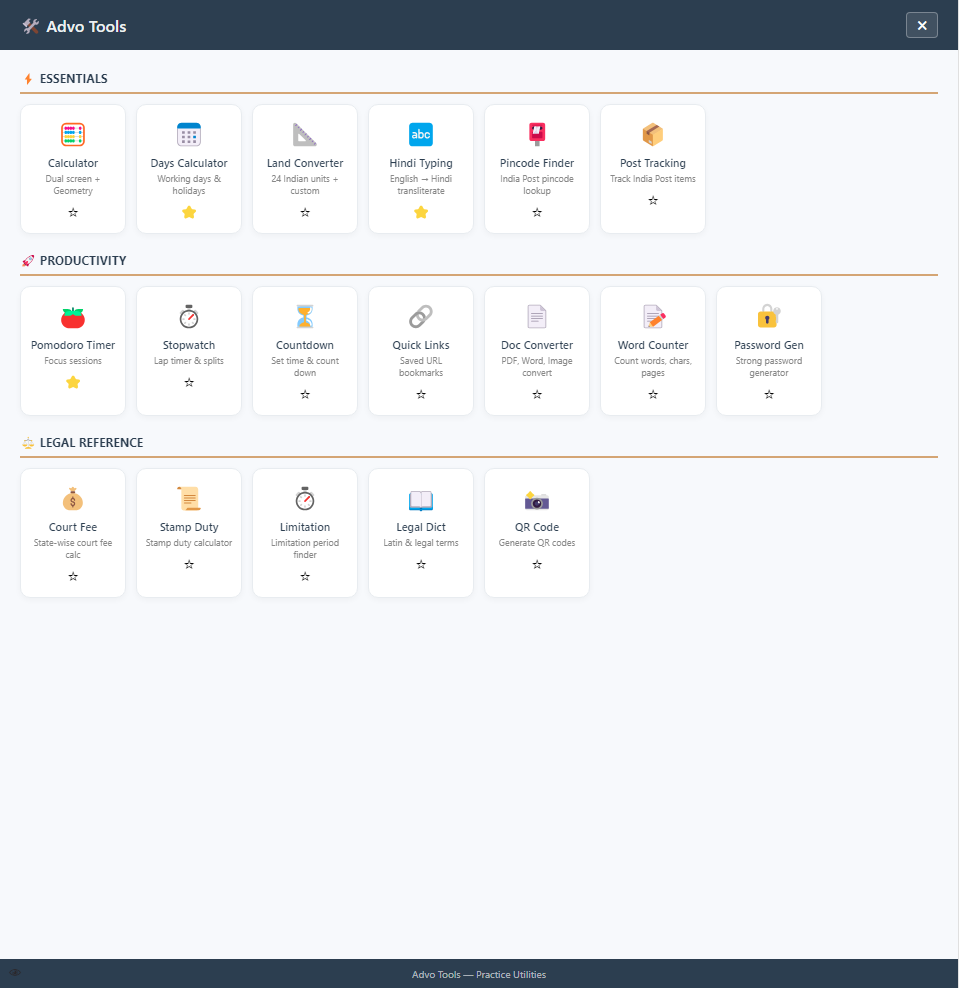
17 tools in 3 sections: Essentials (6), Productivity (7), Legal Reference (5)
| Section | Tools |
|---|---|
| ⚡ Essentials | Calculator, Days Calculator, Land Converter, Hindi Typing, Pincode Finder, Post Tracking |
| 🚀 Productivity | Pomodoro Timer, Stopwatch, Countdown, Quick Links, Doc Converter, Word Counter, Password Gen |
| ⚖ Legal Reference | Court Fee, Stamp Duty, Limitation, Legal Dict, QR Code |
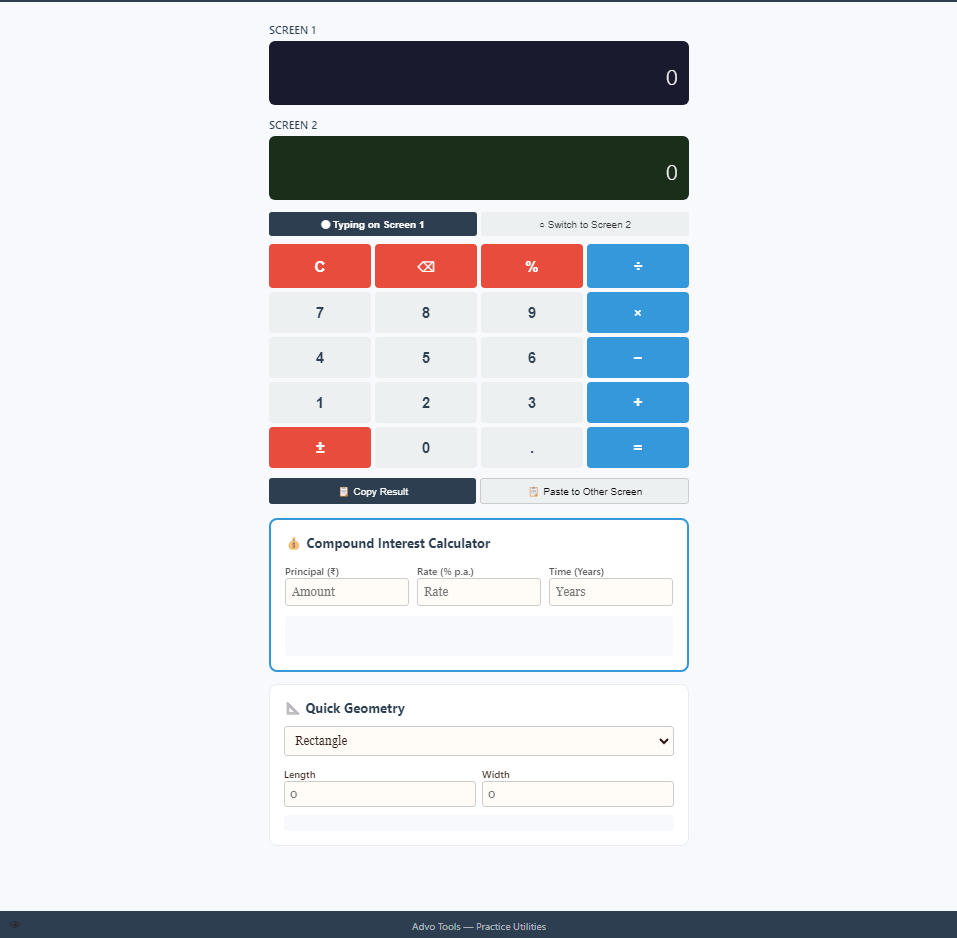
Dual-screen calculator + Compound Interest Calculator + Quick Geometry (area/perimeter)
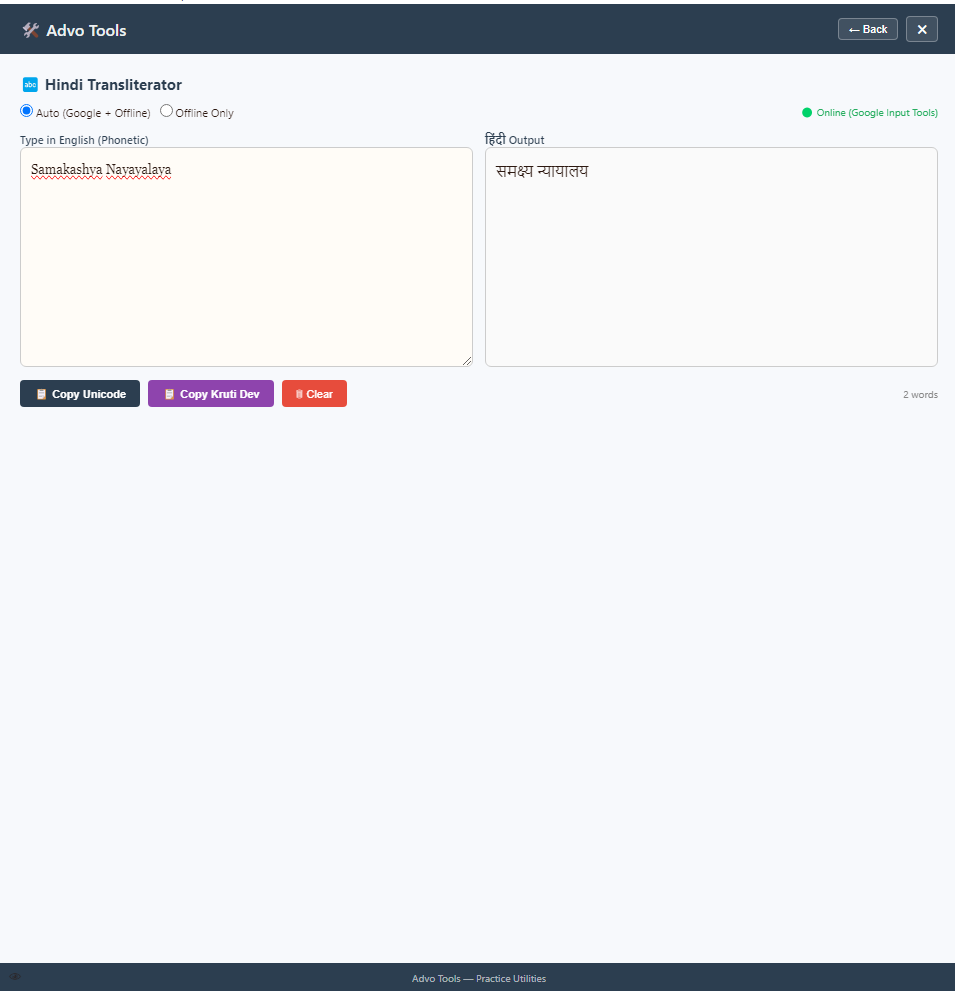
Hindi Transliterator: type English phonetically → get Hindi output. Copy as Unicode or Kruti Dev.
Chapter 14: eCourts Sync
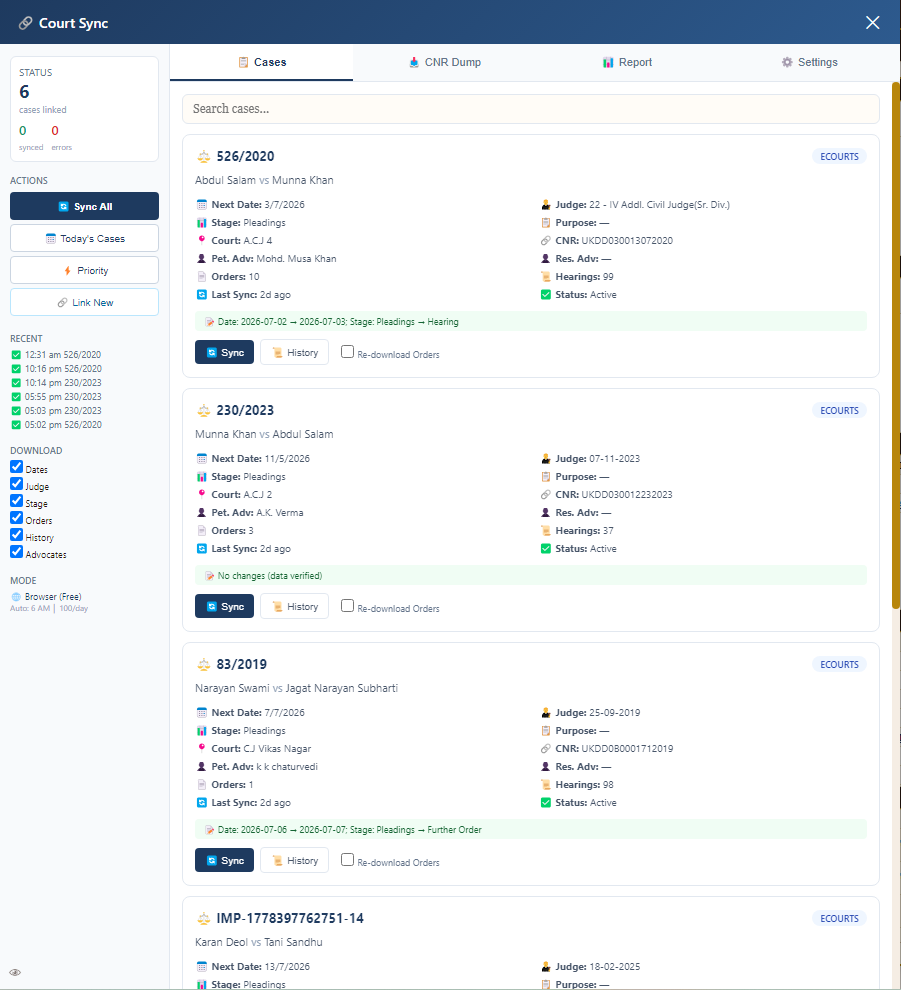
Cases tab: view linked cases with CNR, sync individually, see changes (date/stage updates in green banners)
4 Tabs: Cases | CNR Dump | Report | Settings
How to sync: Case needs CNR → Click 🔄 Sync → System opens eCourts, fills CNR, solves CAPTCHA, downloads data (30-60 sec)
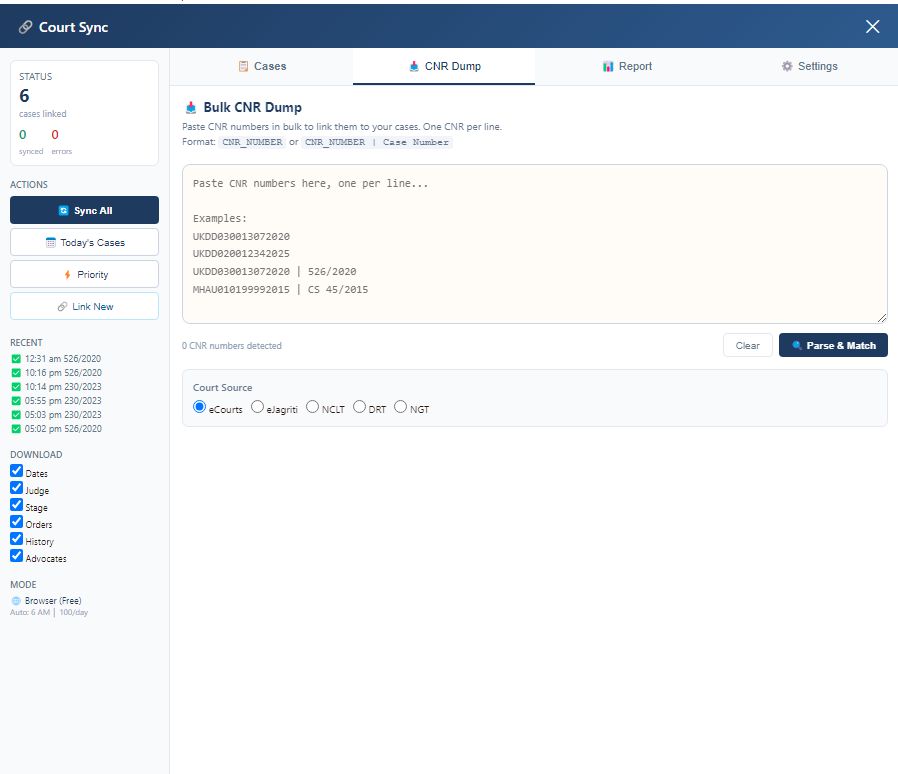
Bulk CNR Dump: paste multiple CNR numbers (one per line), click Parse & Match to link to existing cases
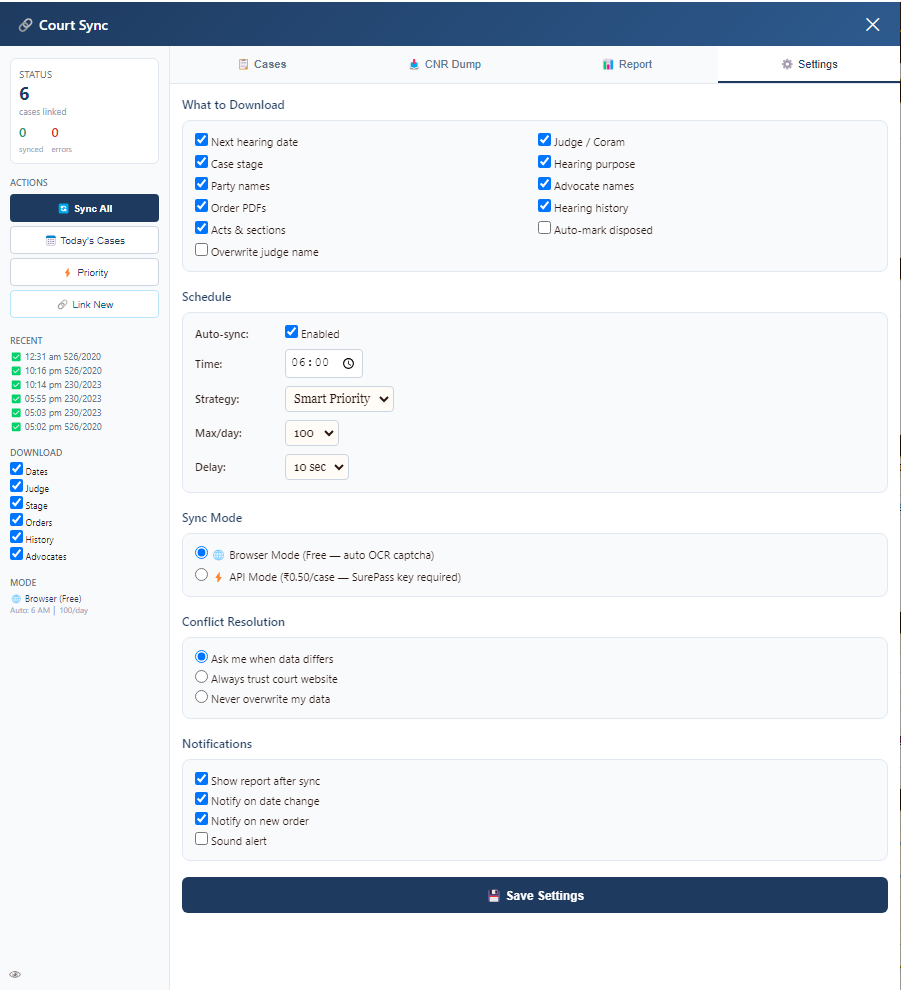
Settings: What to Download, Schedule (auto-sync time/strategy/max per day), Sync Mode (Browser free / API paid), Conflict Resolution, Notifications
Chapter 15: Advoverse Network
Professional networking for advocates across India.
3 Tabs: 🔍 Directory (search advocates by state) | 💬 Connections | 💬 Messages
How: Search → Connect → Message. Set your profile (name, state, district, practice areas).
Chapter 16: Settings
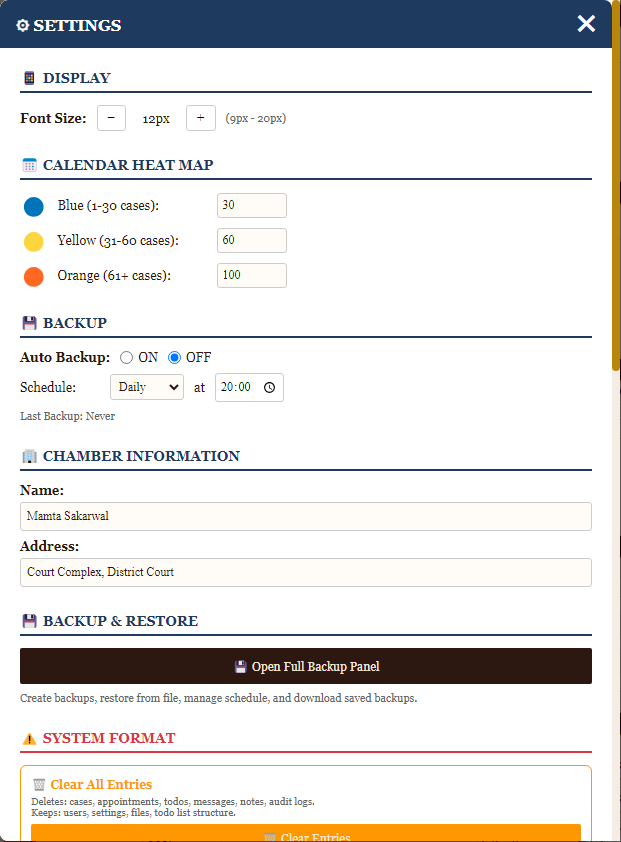
Settings: Display (font size), Calendar Heat Map thresholds, Backup schedule, Chamber Information
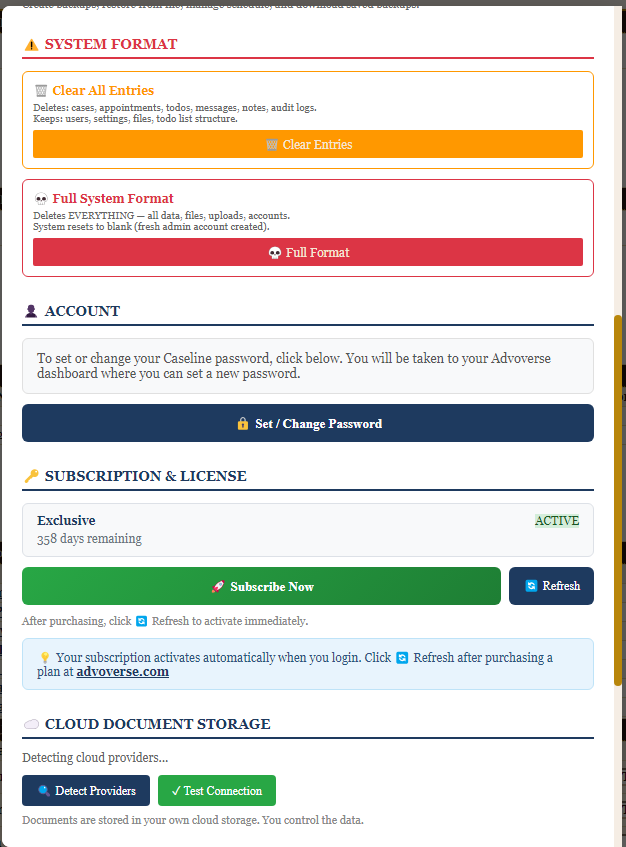
System Format (Clear Entries / Full Format), Account (password), Subscription & License, Cloud Storage
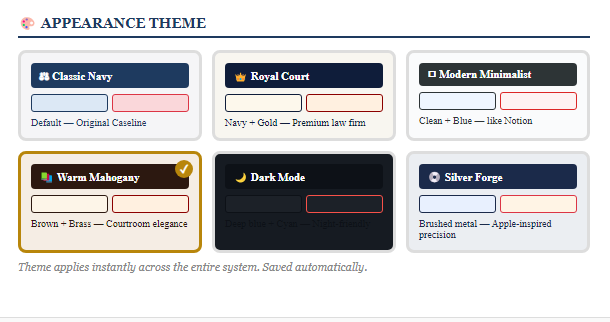
6 themes: Classic Navy | Royal Court | Modern Minimalist | Warm Mahogany | Dark Mode | Silver Forge
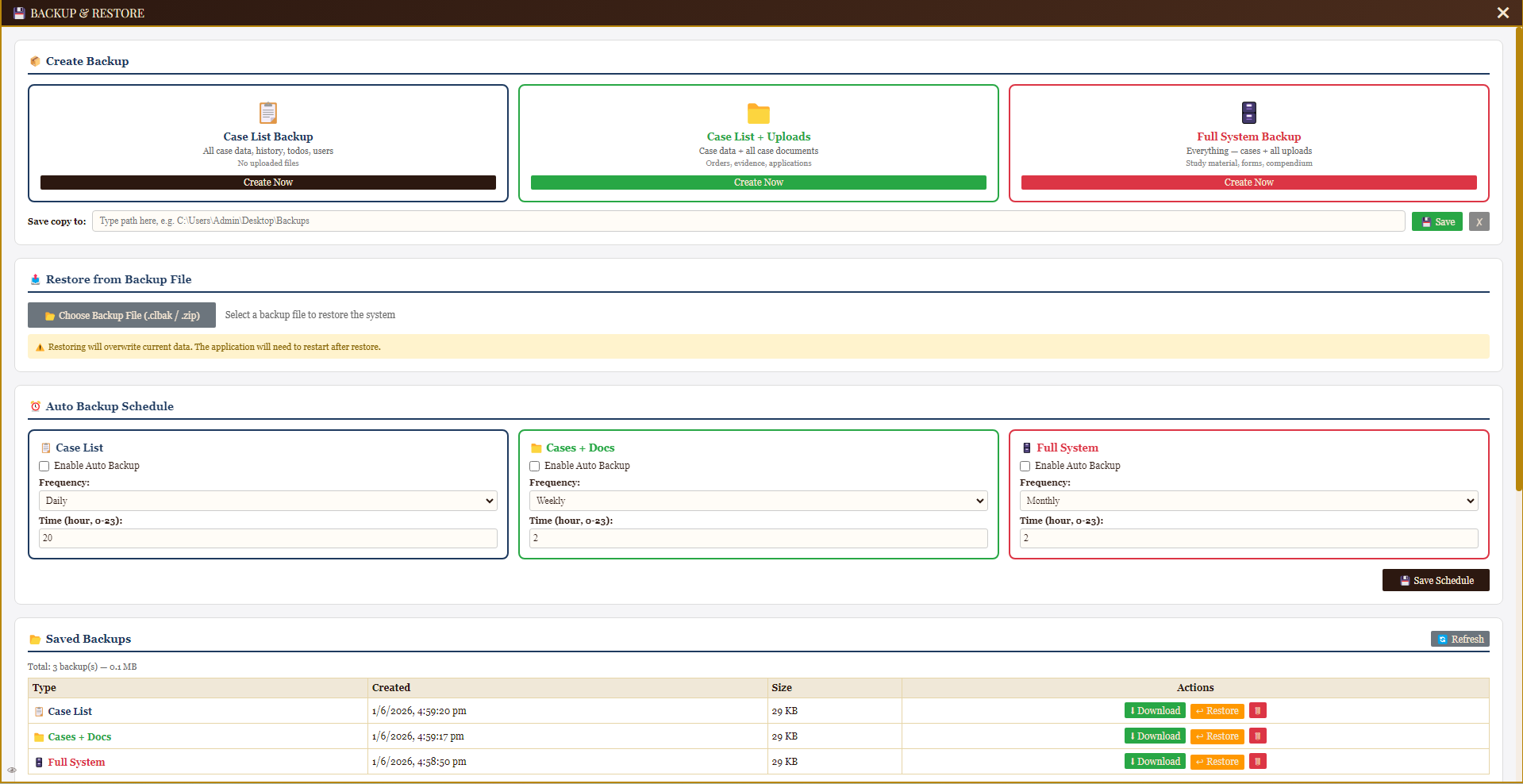
Backup & Restore: 3 backup types (Case List / Cases+Docs / Full System), Auto Schedule, Saved Backups with Download/Restore/Delete
💡 Daily Workflow — Quick Reference
| Time | Action | Where |
|---|---|---|
| Morning | Check today's board | Main console (left) |
| Morning | Plan the day | Daily Planner |
| Before court | Review case files | Case Overlay |
| At court | Note next date | Case Overlay → Save |
| After court | Update tasks | Todo Lists |
| Evening | Log appointments | Appointment Diary |
| Weekly | Sync with eCourts | eCourts Sync → Sync All |
| Monthly | Review financials | Accounting → Reports |
| Always | Backup data | Settings → Backup |